
Final user
Table of Contents
Open an app
A FADA application is a specialized data management software program developed using FADAcore.
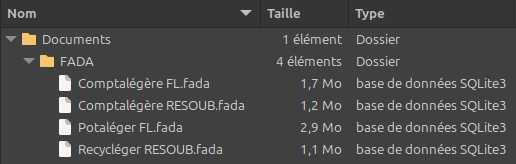
In practical terms, it's a .fada file on your computer or on your local network. This file is an SQLite database that contains the application and your data.
Basic data
The FADA application may be provided with basic data marked with the 🔺 symbol:

The basic data can be edited, deleted, and supplemented with your own data.
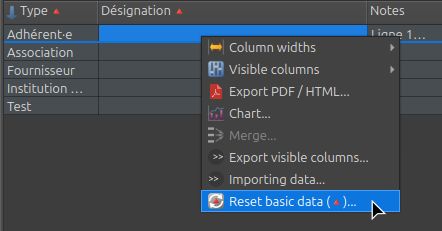
After editing or deleting, the basic data can be restored:
View the data
By default, all columns are visible (right-click to change this), except for certain columns that are necessary for the system to function but are unnecessary for the user (hidden by default).
Sort
The initial sort can be performed across multiple columns:
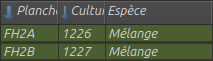
Double-click a column header to change the sort order.
First double-click on a column -> sort in ascending order

Second double-click -> sort in descending order

Double-click a column for the third time -> return to the initial sort order.
Filtering
Two filters can be combined:
User filter (all FADA apps) on any column:
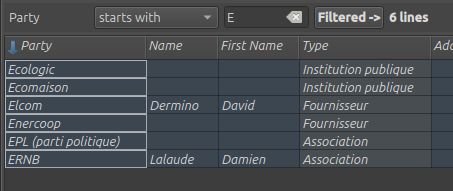
Languages with accented characters: The filter considers only consonants so that accented vowels do not interfere with the search.
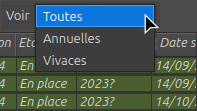
Predefined filter (based on the FADA app):
Edit Data
Edit Toolbar
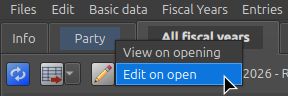
View mode


For each tab, you can choose whether edit mode is selected when the tab is opened.
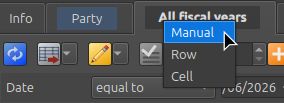
Edit mode



For each tab, you can choose whether changes are saved manually or automatically when you change a row or cell.
Multi-line text editor
Some text fields allow line breaks.
- Press Enter to open the Markdown editor.
- Press Ctrl+Enter to exit and save your changes (note: you must still confirm all changes).
- Press Esc to exit without saving your changes.
Advanced Copy and Paste
Copy multiple non-adjacent cells...
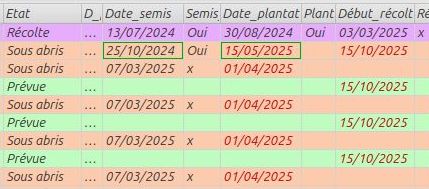
Paste without changing the cells that aren't affected!
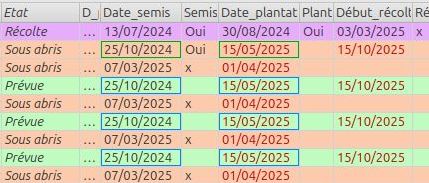
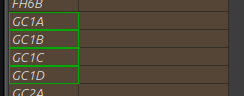
Ctrl+click to select multiple non-adjacent cells
Ctrl+C: The copied cells are highlighted in green
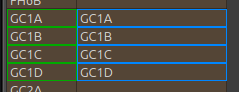
Ctrl+V: Copied cells are pasted while retaining their relative positions
Ctrl+Shift+V: Paste while merging cells. In a multi-line field, the copied cells are pasted as a merged group into the destination field. Delimiter for copied cells: Tabs and line breaks.
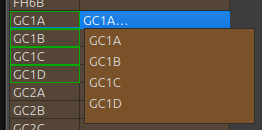
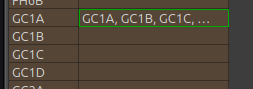
Ctrl+Alt+V: Paste while merging cells. The copied cells are pasted as a single row in the destination field, separated by commas.
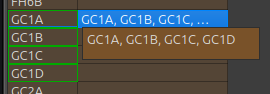
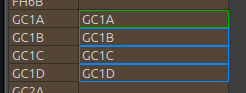
Ctrl+Shift+Alt+V: Paste, splitting the single copied cell into multiple cells across multiple rows. Separator for the copied cell: tabs, commas, and semicolons.
Formula
In a numeric field, if an entry begins with an equal sign (=), what follows will be interpreted as an expression to be calculated when you press Enter.
=1+1 returns 2.
=‘1’||‘1’ returns ‘11’.
Only the result is stored, not the formula.
Syntax of calculated expressions
Type +, -, /, or * directly into a non-empty numeric cell to edit it using a formula.


Data backup
You can back up all your data by making a copy of the .fada file you're working on.
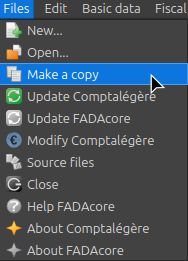
A date can be automatically inserted into the file name: the Db_copy_suffix parameter
All data tables can be exported as PDF or HTML files, which can then be printed (right-click).
Headers and footers are not currently customizable.